
How to create a New Schedule
Creating Schedules
Managing your Schedules
This screen is the schedules page. Here you will be able to see all of the relevant information for any schedules that has been created. It is displayed in a way that is easy to see and understand and gives you the ability to change any information in upcoming schedules. Schedules are only accessible to Bureau users.
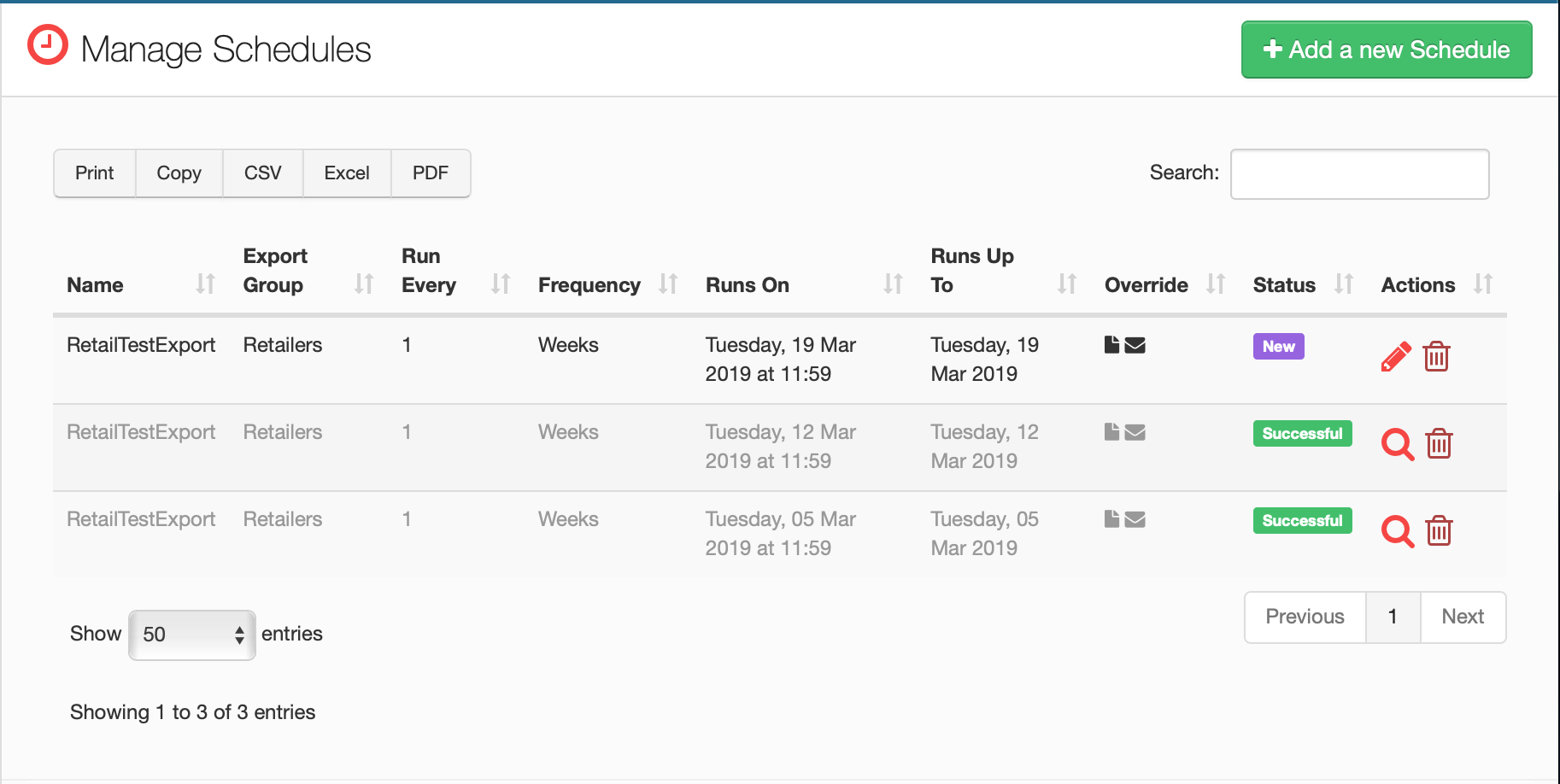
Schedules are created specifically to relay information pertaining to timesheets and leave requests that have been exported from the portal. This screen will tell you how frequent the schedules will be run as well as what day it is set to run on.
Creating a New Schedule
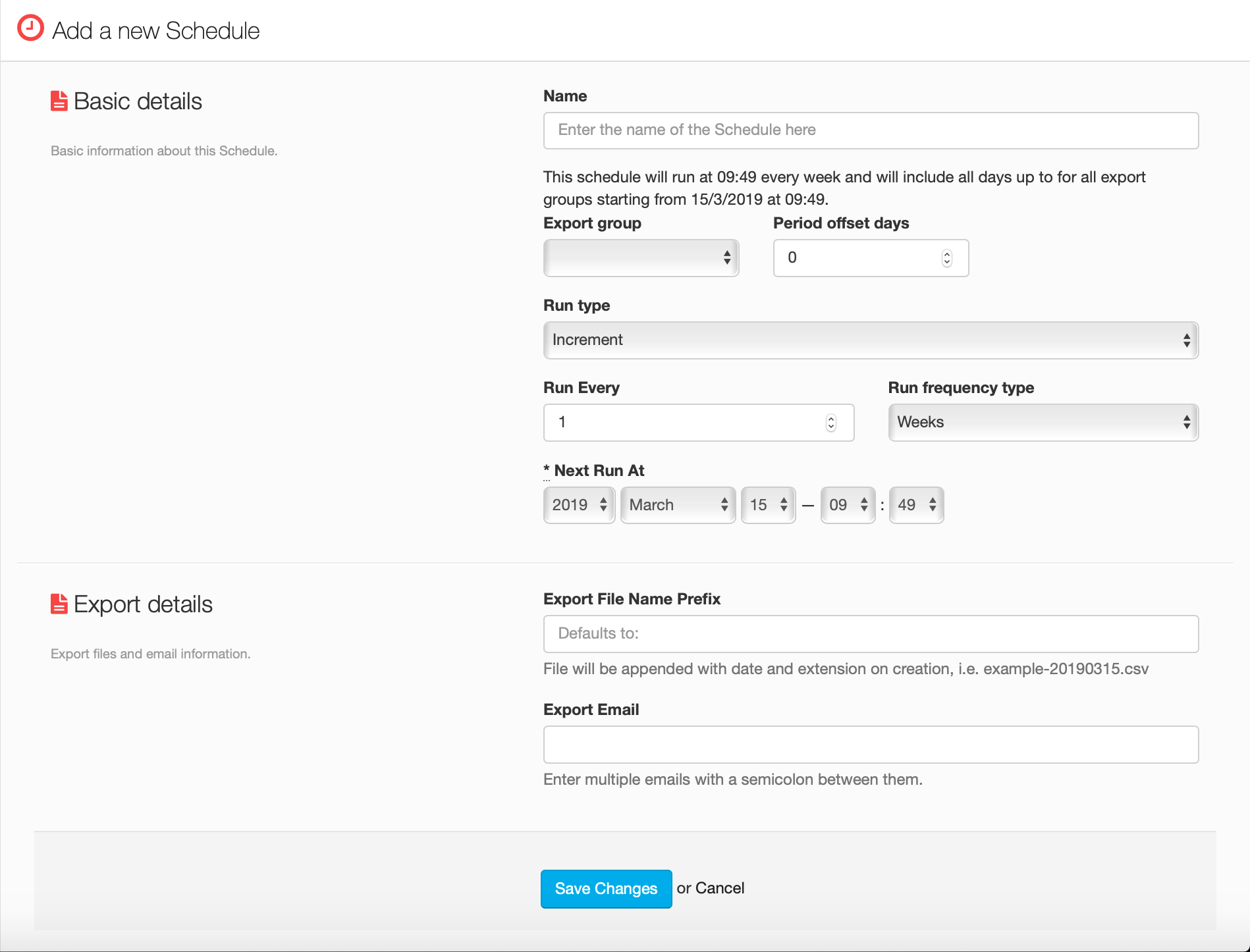
To create a new schedule, click the green button called 'Add a New Schedule', this will redirect you to the appropriate page to be able to make schedules. This page has a few sections that you need to fill out in order to create schedules.
Basic Details and Export Options
This area of the setup screen is where you choose the exact details for the schedule to run through. Start by entering the name of the schedule, then selecting an export group, this can be any group on the portal, as well as the period offset days, if you want the reports to run adjacent to a pay period.
Next select the run type of the schedule, this can be done in one of three ways, Increment, Specific day or Month end. Increment allows you to choose whether it runs every week or fortnight, as well as how many weeks of them before the next run. Specific day is used if you are running a one off schedule, and it will only run that one day, and Month end will run at the end of every month. You can also select the day that you want the schedule to start from.
Lastly, the export details, here is where you select the export file prefix which will be attached to schedule once it has been run, making it easier to identify it, as well as any additional emails that you want the exported schedule to be sent to upon completion.
Once you have done this, click on the save changes button at the bottom to save your schedule. It will now be ready to run from the date you have chosen.