
How to apply for leave
How do I apply for Leave?
If you are wanting to apply for leave but don't really know how, this guide will show you.
To apply for leave you need to click on the 'Leave Requests' button on the left side menu, this will bring you over to the page you need to be on.

After you click on the leave requests button on the dashboard, you should see this screen, you will notice two green buttons in the top right corner, one for requesting a whole day and one for requesting a part day.
Requesting one or more whole days
If you are wanting to request leave for a whole day or more than one day, clicking the corresponding button will bring you to this screen.
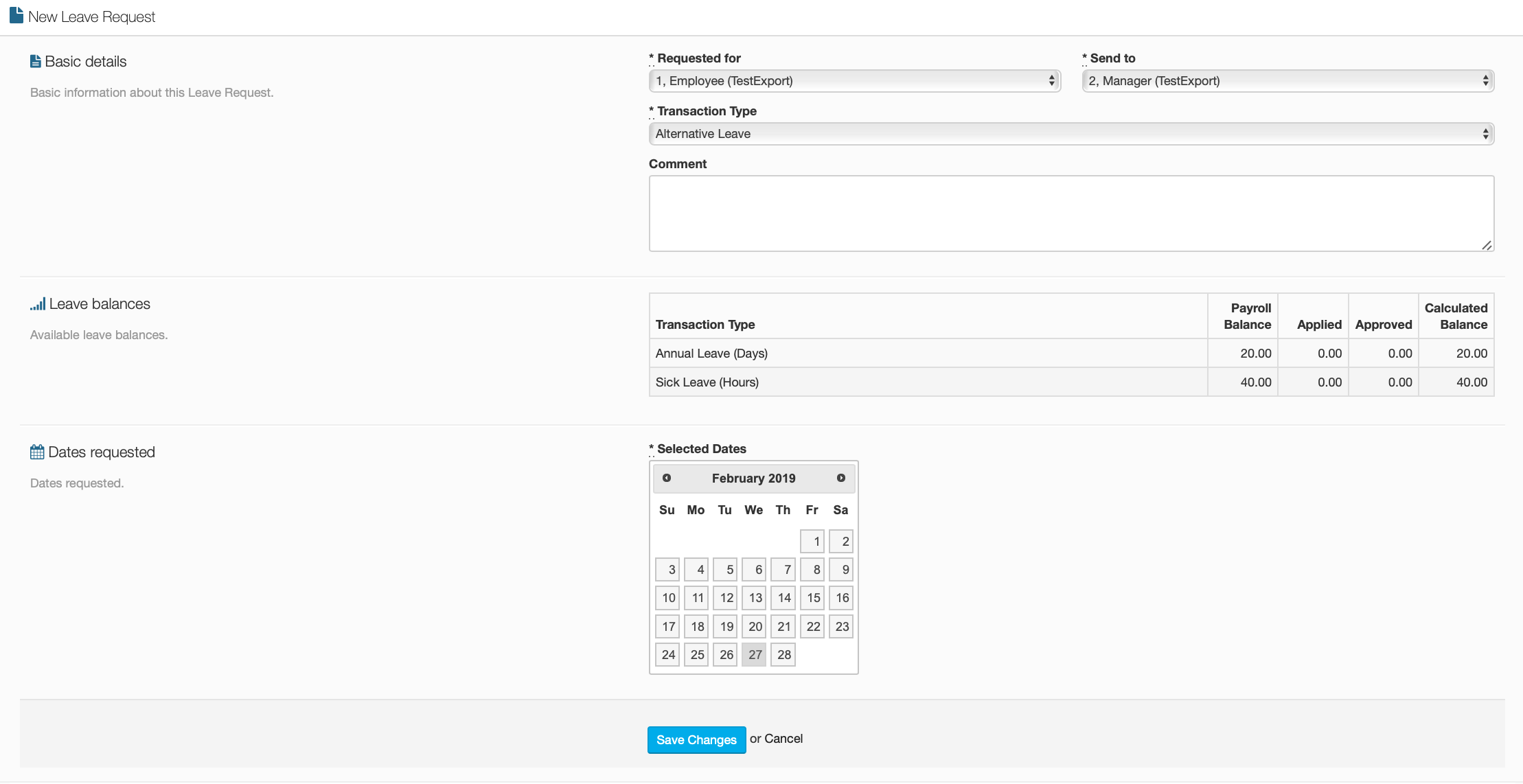
Basic Details
These are the basic details you will need to fill out when applying for leave, these include your name, the manager that you need it to be sent to, the transaction type that your leave falls under as well as an additional comment if you need to address any other information.
Leave Balances
This section has a small list that shows you how much leave you have and of what type, to make it easier for you to see what you can apply for, bear in mind, this is only visible if your company has allowed these certain leave types to be visible.
Dates Requested
This contains the calendar where you can select the period of time that you are applying for leave, simply click on all of the days that you want and the system will process it.
Once you are done with screen, click on the 'Save Changes' button and it will send the leave request to your manager.
Requesting a Part Day
If you are only wanting to request leave for a part day, click on the corresponding button and it will bring you to this screen.
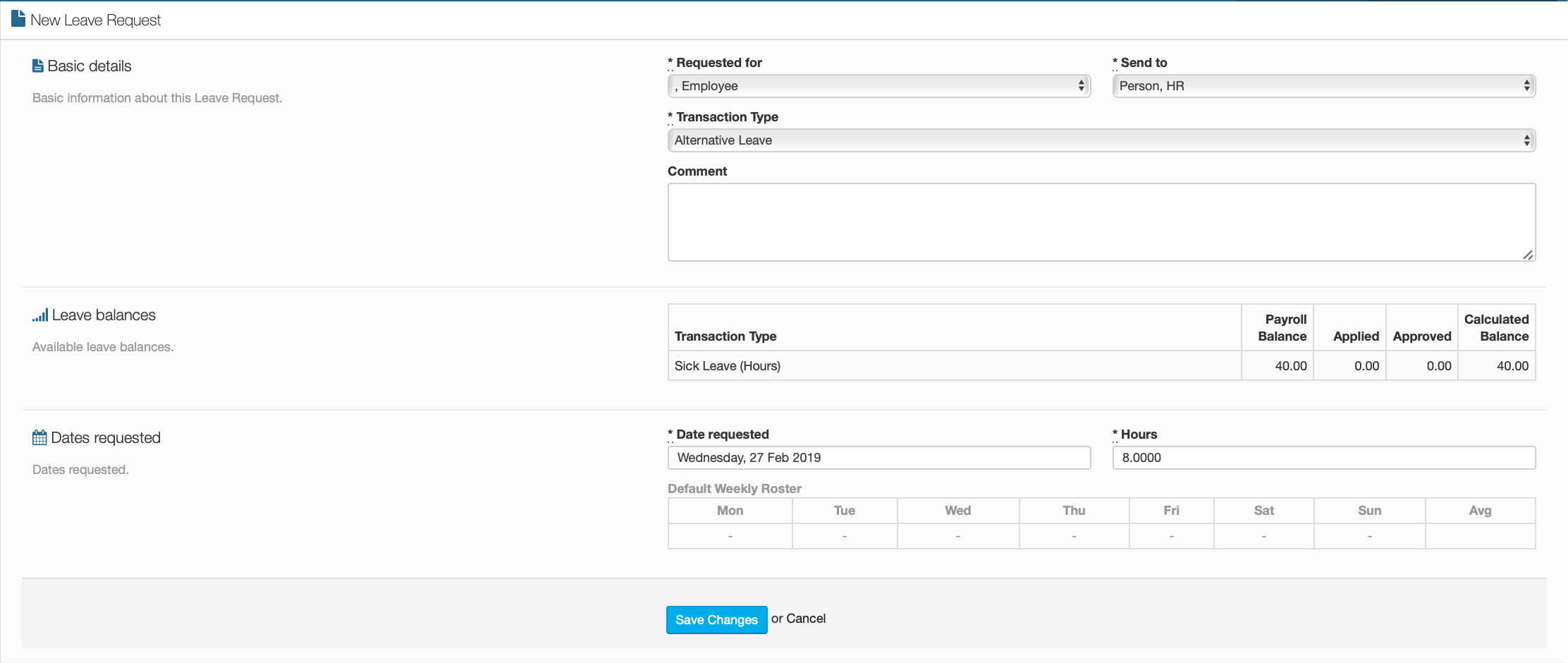
Basic Details
These are the basic details you will need to complete. Enter your name in the 'Requested for' box and your manager's name in the 'Send to' box. Select which transaction type you will be using for your leave request, and you can add a comment if you need to address any additional information.
Leave Balances
This small section details how much of each leave type that you have available, this just makes it easier for you to find out how much you can apply for, however, you can only see this if your company has permitted leave balances to be visible.
Dates Requested
This section is where you enter the date that you are requesting. Click on the dates requested box and select the date that you are requiring a part day for, then enter the amount of hours in the next box. The default weekly roster will just show you the hours for your regular day, in case you need help with selecting how any hours you need.
Once you are done, click on the 'Save Changes' button, this will take you back to the the leave requests page and it will also send your request to your manager for approval.