
Ad-Hoc Reports - Users
The Ad-Hoc reports contain a much wider spectrum of information than the standard reports that can be run. They are split up into four sections. They also come with a much more advanced filter which makes it much easier. This page will detail the Users report. These reports are only available to users who are manager or higher.
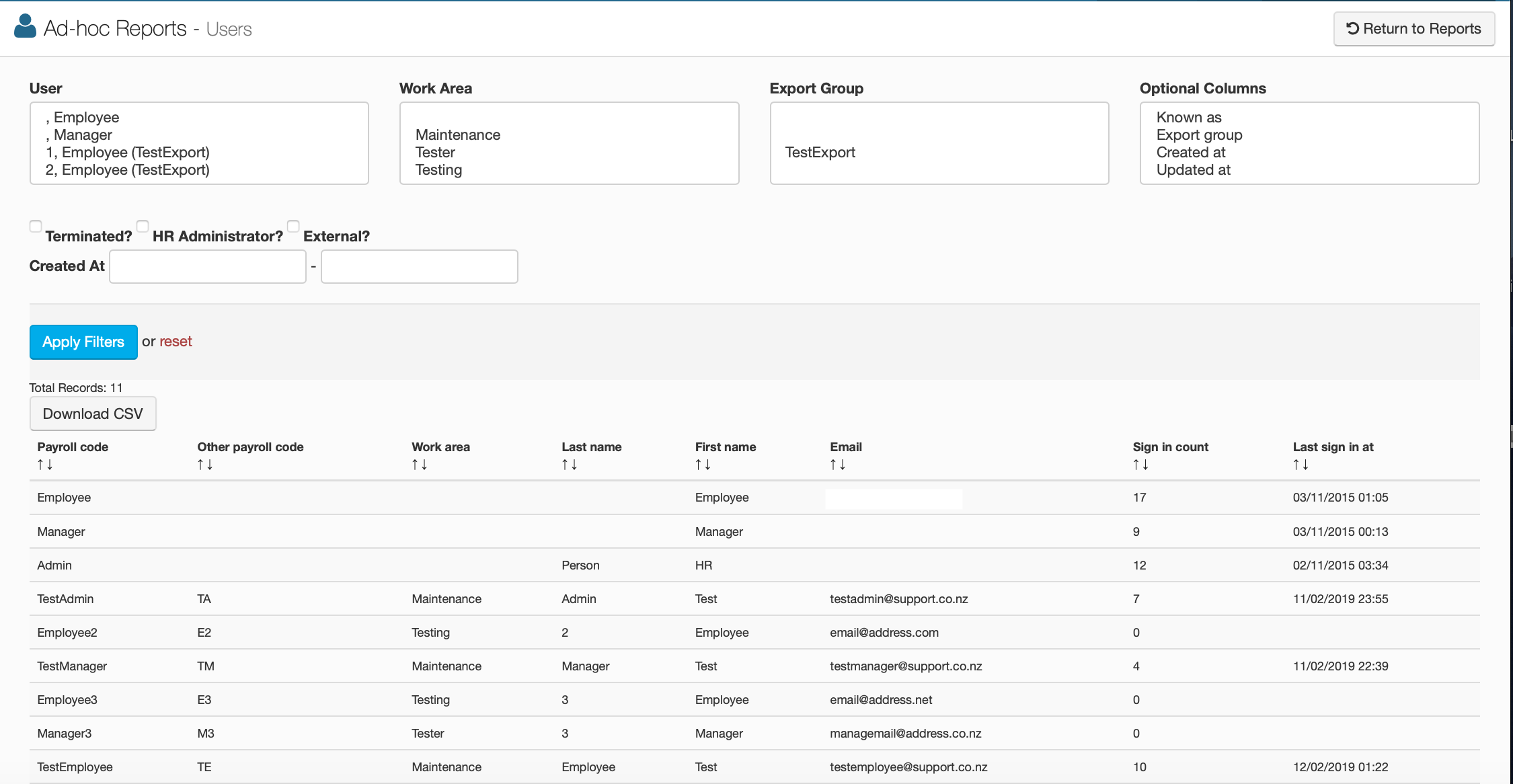
This screen will show you all the information about users on your portal. The top half of this screen functions as a filter option if you're looking for someone in particular and the lower half is the table that shows you every user on your portal as well as contact and work information.
The Filter Options
User
This will allow you to choose a specific employee.
Work Area
This will allow you to choose a specific work area.
Export Group
This will allow you to choose an export group.
Optional Columns
This will allow you to add extra columns to the table by selecting any of these.
Terminated
Check this box if the employee is terminated.
HR Administrator
Check this box if the employee is an HR admin.
External User
Check this box if the employee is an external user.
Created At
This can be used to find dates that employee's were added to the portal.
The Table Options
Payroll Code
This shows the employee's payroll code.
Other Payroll Code
This shows any other payroll code the employee has setup.
Work Area
This shows the employee's work area.
Last Name
This shows the employee's last name.
First Name
This shows the employee's first name.
Known As
This shows you if the employee goes by another name.
Email
This shows the employee's email address.
Export Group
This shows the employee's export group if they are part of one.
Sign In Count
This shows how many times the employee has visited the portal.
Last Sign In At
This shows when the employee last signed in.
Created At
This shows when the employee was added to the portal.
Updated At
This shows you when the employee's information was last updated.