
How to setup Transaction Types
Managing and Creating Transaction Types.

This page will allow you to setup and manage pre-existing transaction types that are used within your payroll system. It displays in a table with all the names, their codes, units of measurement, etc. If you just want to manage them, or change types already there, there is an edit icon on the right side of the table that allows you to do just that.
However, if you would like to create a new transaction type, in the top right corner will be a green button called 'Add a new Transaction Type', clicking on this will bring you to the page where you can do that.
Creating a new Transaction Type.
When you are setting up a new transaction type, there will be a few sections that you will need to fill out. The first will be a series of basic details which tell the system what transaction type you are creating.
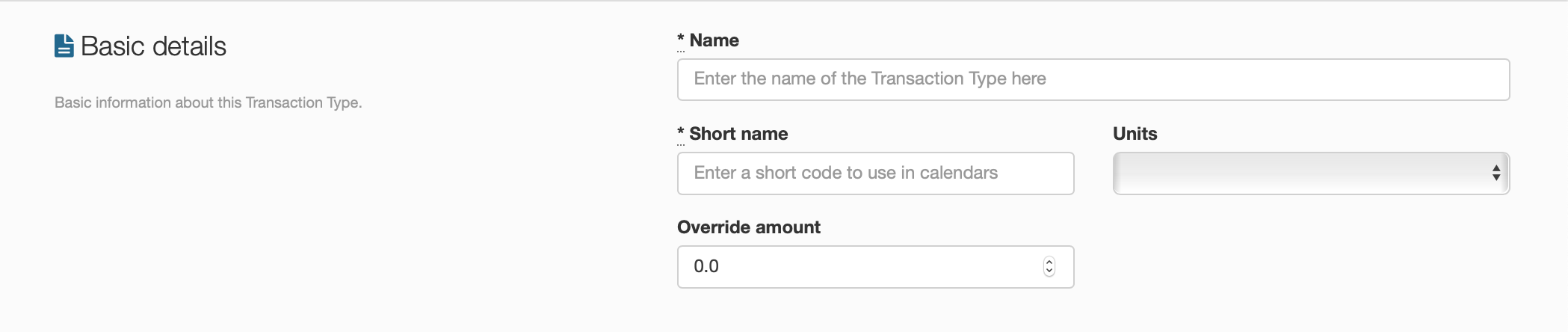
Basic Details
Name
This will be the name of the transaction type.
Short Name
The shortened name of the transaction type.
Units
The unit of measurement that the transaction type is calculated with.
Override Amount
The amount of leave employees can take in advance that will be approved
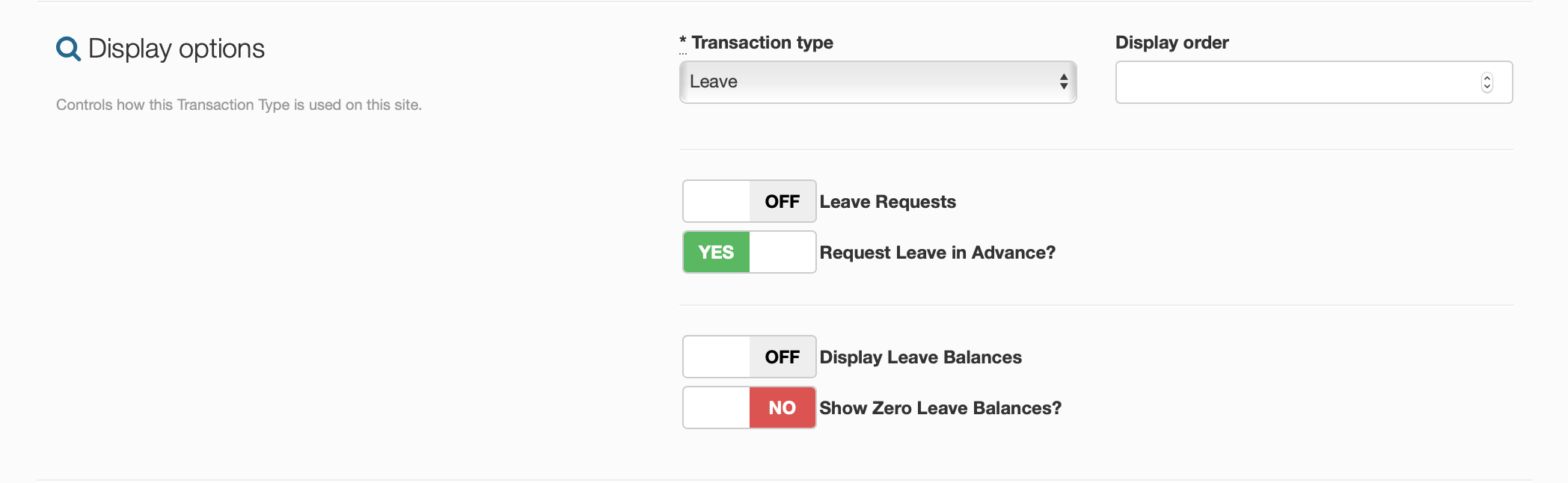
Display Options
Transaction Type
Choose whether this transaction type is classed as leave or as a timesheet.
Display Order
Choose where this transaction type sits in the table with all the other transaction types.
Leave Requests
Can you request leave from this transaction type?
Request Leave in Advance?
Can you request leave in advance from this transaction type?
Display Leave Balances
Does this transaction type display leave balances?
Show Zero Leave Balances?
Does this transaction type show a zero leave balance, if applicable?
Payroll Options
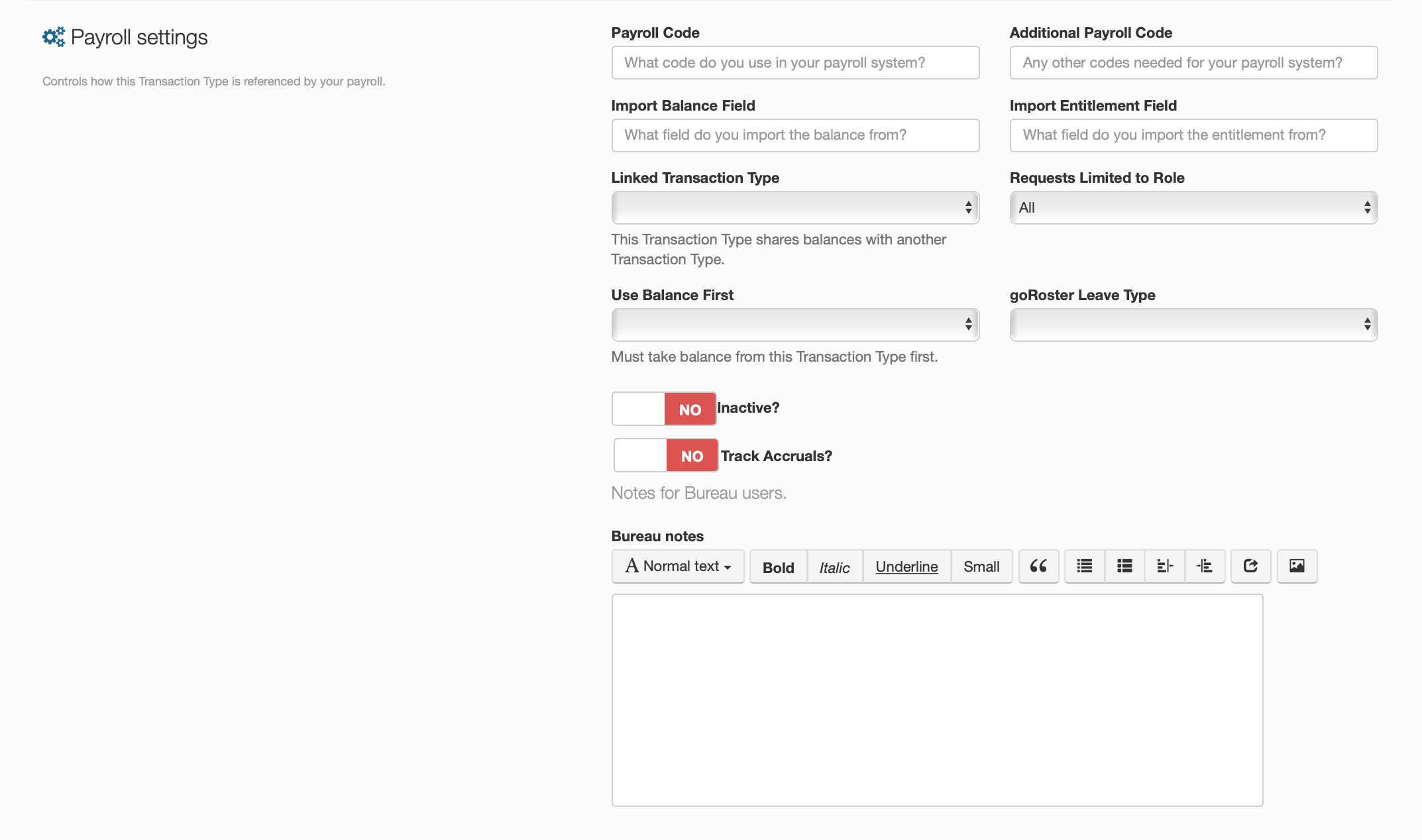
Payroll Code
The code that you use in your payroll system for this transaction type should be input here.
Additional Payroll Code
If you use any other codes for this transaction type, enter them here.
Import Balance Field
This relates to the code used in the payroll system that the code for the transaction type is derived from. So for example, if you had annual leave set up as ANL, then this would be the code you use for the import balance field.
Import Entitlement Field
This is for if you would like to show entitled leave and accrued leave separately on the leave balances. This comes directly from the import file from the payroll.
Linked Transaction Type
Select whether this transaction type shares the same value as another transaction type.
Requests Limited to Role
Select whether or not this transaction type is limited to a specific employee role.
Use Balance First
Choose if you want this transaction type to take leave balance from another transaction type first.
goRoster Leave Type
If you have goRoster enabled, approved requests will show up in peoples rosters and loading timesheets in the portal will pull days / times from goRoster.
Inactive?
Is this transaction type active or inactive?
Track Accruals?
Does this transaction type track leave accruals or not?
Bureau Notes
Add any notes here to tag onto the transaction type that you would like the bureau to read.
Exporting the table of Transaction Types.
In the top right corner of the page, there will be two buttons, one is for all the previous steps, the other is for exporting. Clicking the export button will take all the current transaction types and it will export it to a designated location, as setup within the account t settings pages.