
Setting up new Users
Managing and setting up new Employees.
This section of the portal is only available for HR administrators and Bureau users.
In order to manage your current portal users or setup a new employee, you want to click on the little gear icon next to your name, in the top right corner. From here you will see a tab called 'Users'. Simply click on that button and you'll arrive at the users screen, this is where you can manage all the employees on the portal.
If you wish to add or terminate a user, in the top right corner there will be a green button labelled 'Add a new user'. Click on that and you'll be good to go.
Viewing the users on the portal.
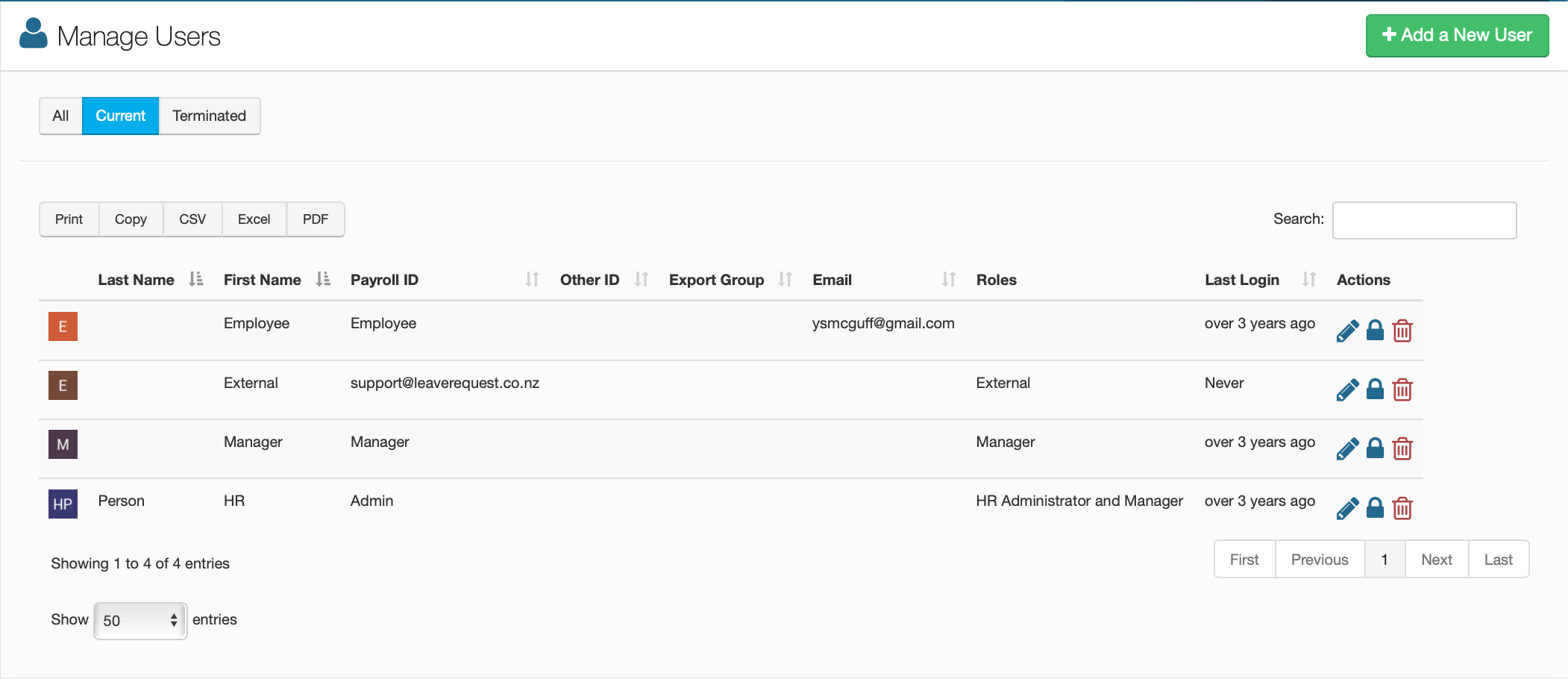
Once you have clicked the gear icon on the main page, you will find yourself looking at this screen. On this page you have the option to add new users, terminate users and simply view how many people are on the portal, all of their user information, when they last logged in, etc.
From this table you can choose to edit any employees, delete user data or search for a specific employee. You can also choose which employees you want to view by selecting 'All', which will show all employees, current or terminated or you can filter it between current employees or terminated employees.
If you need to, you can also print or copy the table, as well as converting the table format to a CSV file, an Excel spreadsheet or a PDF document.
Add a New User.
Upon entering this page, you will notice a series of boxes you will need to fill out. All you need to do is to fill out all the required boxes, head to the bottom and click 'Save Changes'.
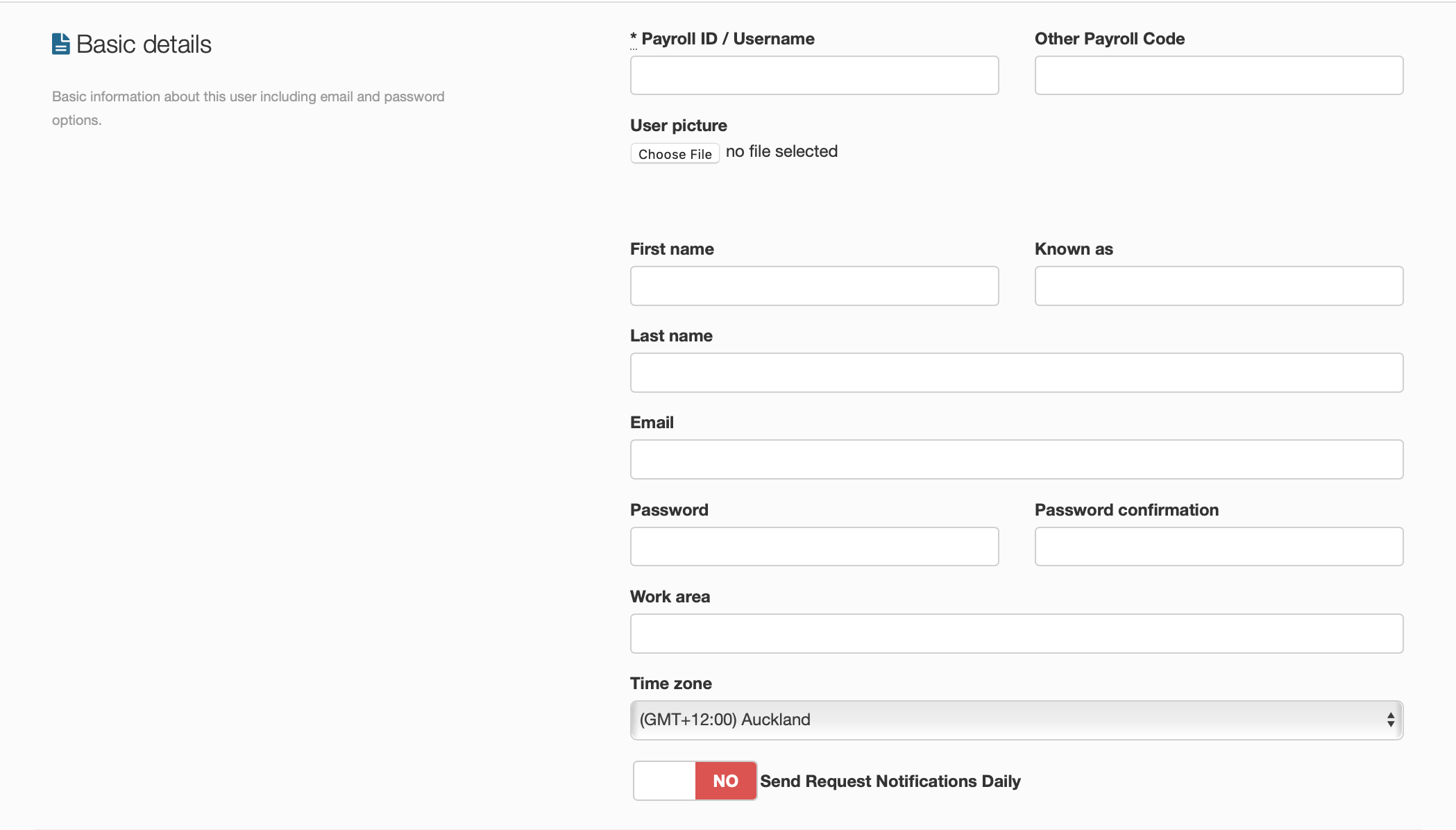
Basic Details
Payroll ID / Username
Enter the ID or username that the employee will use to login to the portal.
Other Payroll Code
If the employer prefers to use a different code for their employee's, enter it here.
User Picture
Enter in a custom picture for the employee if you so desire.
First Name / Last Name
Enter the employee's first and last name.
Email
Enter the employee's email address.
Password / Password Confirmation
Enter the employee's password then again to confirm it.
Work Area
Enter the employee's designated work area code.
Time Zone
Enter the time zone that the employee resides in.
Send Request Notifications Daily
Choose whether or not to send daily notifications to the employee.
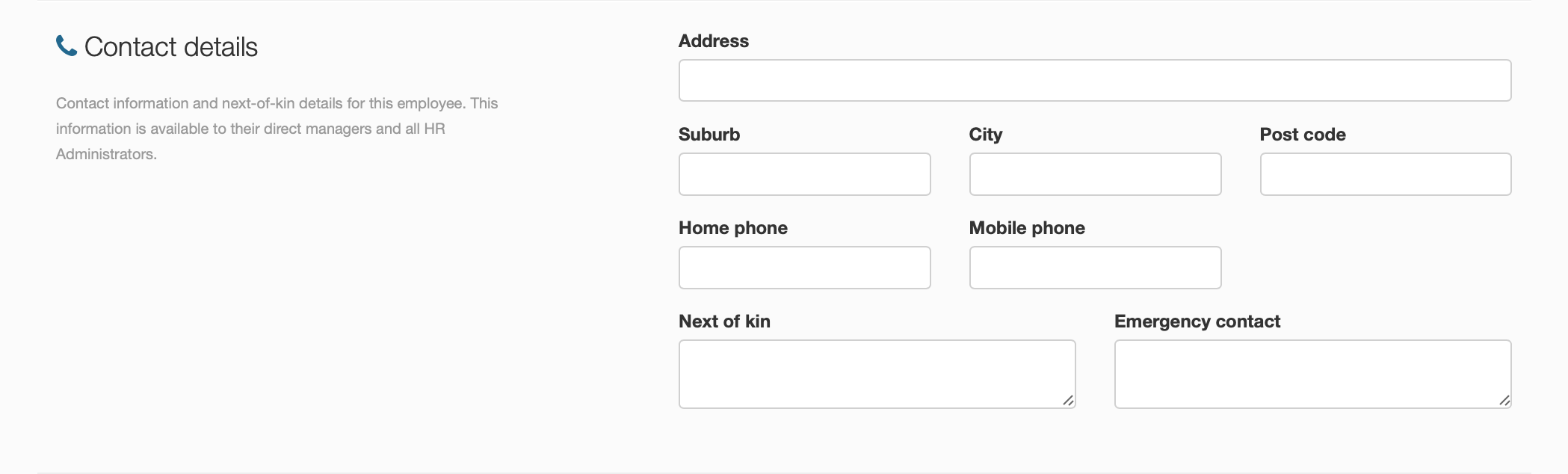
Contact Details
Address
Enter the employee's address here.
Suburb
Enter the suburb that the employee lives in.
City
Enter the city that the employee lives in.
Post Code
Enter the local post code for the employee.
Home Phone / Mobile Phone
Enter the phone contact details of the employee here.
Next of Kin / Emergency Contact
Enter their next of kin as well as their contact number too.

Roles
This one is pretty simple, all you have to do is select the slider that you want the current user that you are setting up to fall into, whether it be an HR administrator or an External user if they are not in the payroll. If you are just setting up a regular employee, do not select any of the sliders.
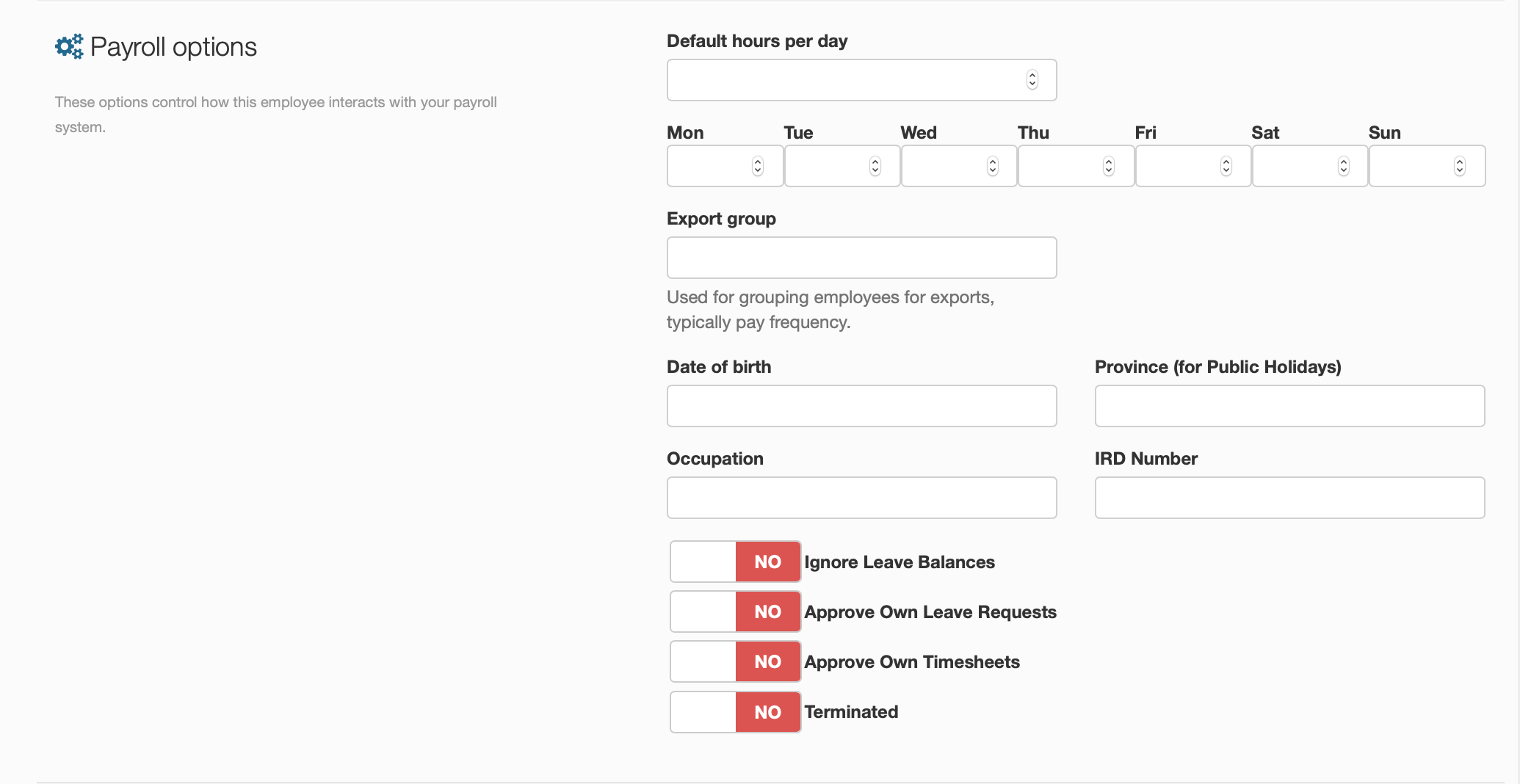
Payroll Options
Default hours per day
Enter the amount of hours the employee works per day.
Days worked
Select which days the employee works per week.
Export group
If they are to be a part of an export group, enter that here.
Date of Birth
Enter the employee's date of birth here.
Province
Enter the current province that the employee falls under.
Occupation
Enter the employee's job title here.
IRD number
Enter the employee's IRD number here.
Slider options
These sliders give you a couple of options, the first being the ability for the employee to ignore leave balances, whether or not they can approve their own leave requests and timesheets, and lastly, if you are terminating a current employee, select the last slider.
Terminating a current user.
If you wish to terminate a user who is on the portal, click on the edit icon on the table of the employee you wish to terminate from the portal, head to the bottom of the options that come up and select the slider that says 'Terminated'. Save your changes and when you head back to the main table that employee will be term