
How to check Leave Balances
Checking and Managing your Leave Balances.
This page is intended for giving you a breakdown of all of the leave that you have available, and if you are a team leader, then you can also see all of your teams leave balances also. This page also gives you the functionality to edit or remove balances, or even search through them, if there are enough.
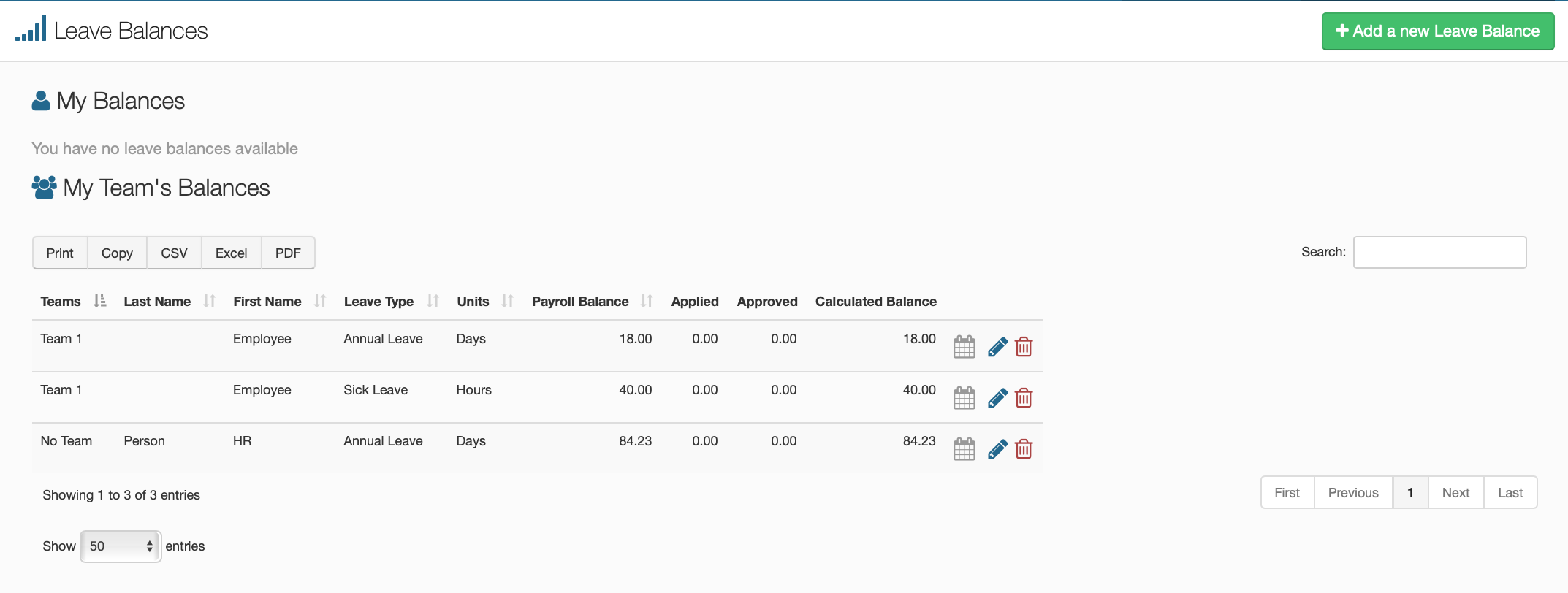
My Balances.
This small segment will give you the amount of each leave type that you currently have. It gets separated into however many categories are needed, dependant on how many leave types you have set up with in your payroll system and the portal.
My Team's Balances.
This section lists in detail the amount of leave that each person has as well as what team they are in if they are set up. It also shows various different balances, applied and approved leave and the ability to check dates, edit leave balances and discard units.
Understanding the Team Balances Table.
You can either choose to print this table to a local printer or copy it to a clipboard, otherwise, you can choose to convert the table to a CSV file, an Excel Spreadsheet or a PDF document.
| Teams | Displays the employee's team name, if they have one | |
| Last Name | Displays the employees last name | |
| First Name | Displays the employee's first name | |
| Leave Type | Displays the name of each of the leave types the employee has available | |
| Units | Displays the unit of measurement used to calculate the leave type | |
| Payroll Balance | Displays how many units of each leave type the employee has | |
| Applied | Displays how many units of leave the employee has applied for | |
| Approved | Displays how many units of leave have been approved by a manager | |
| Calculated Balance | Displays how much leave the employee has after the requested leave has been deducted |
What are the Icons on the right side?
Calendar
This icon shows you to which date the leave has been accrued to.
Edit
Allows you to edit the leave balances of a chosen employee.
Delete
This will delete the leave balance permanently.
The Bottom of the Page
Down here you can choose how many entries you would like to show per page, up to a maximum of 100. You can also click the bottom right to cycle through the pages, if there is more than one, alternatively you can also skip to the first or last page.
Adding a New Leave Balance.
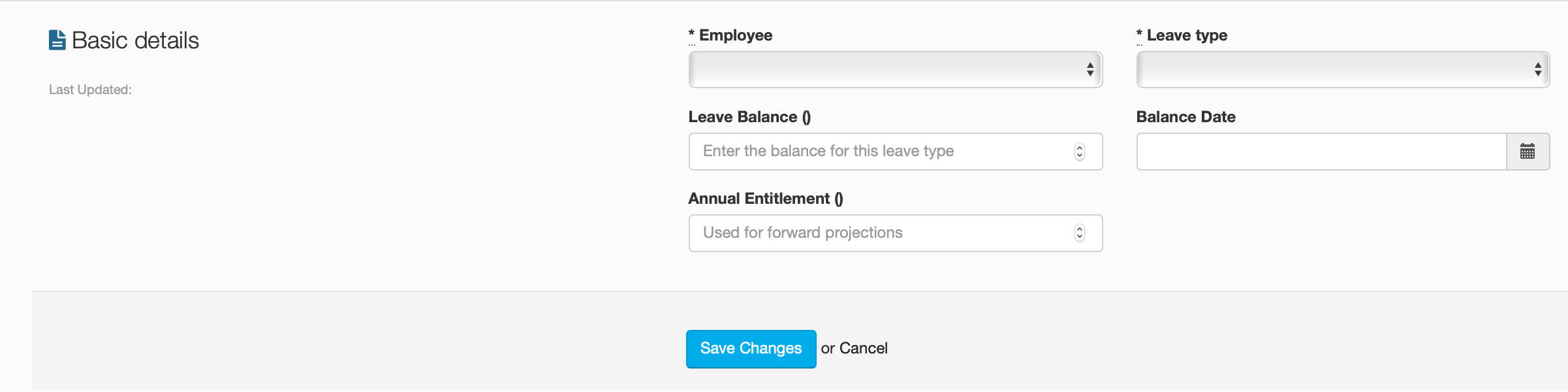
The Basics of Updating Leave.
Employee
Select the employee that you want to update the leave values of.
Leave Type
Select the type of leave that you want to update/give the employee.
Leave Balance
Enter the amount of leave that you wish to give to the employee.
Balance Date
Select the date that this balance was updated.
Annual Entitlement
The amount of leave owed to you from previous years.
Now either press the 'Save Changes' button, or 'Cancel' if this is not what you wanted to do.