
How to enable two factor authentication
Overview
Two-Factor Authentication (or 2FA), also known as Multi-Factor Authentication (MFA) is an additional security measure to protect access to your details, it consists of something you know (your password) and something you have (a one-time-based code generated from a separate application).
To enable 2FA, you need to authorise it in your user profile, using the one-time password (OTP) application of your choice. Once enabled you will be given a set of backup codes - it is essential you do not lose these as they are the only way to log in if you do not have your OTP application available. From that point onwards when logging in you will be asked for a code generated from your OTP application and your normal password.
For Administrators: In the user list, anyone with a padlock icon next to them has 2FA enabled.
Enabling Two-Factor Authentication
- Ensure you have an appropriate one-time password tool, this will typically be provided by your company, common tools are Google Authenticator, Microsoft Authenticator, Author, 1Password, or LastPass - there are many others available.
-
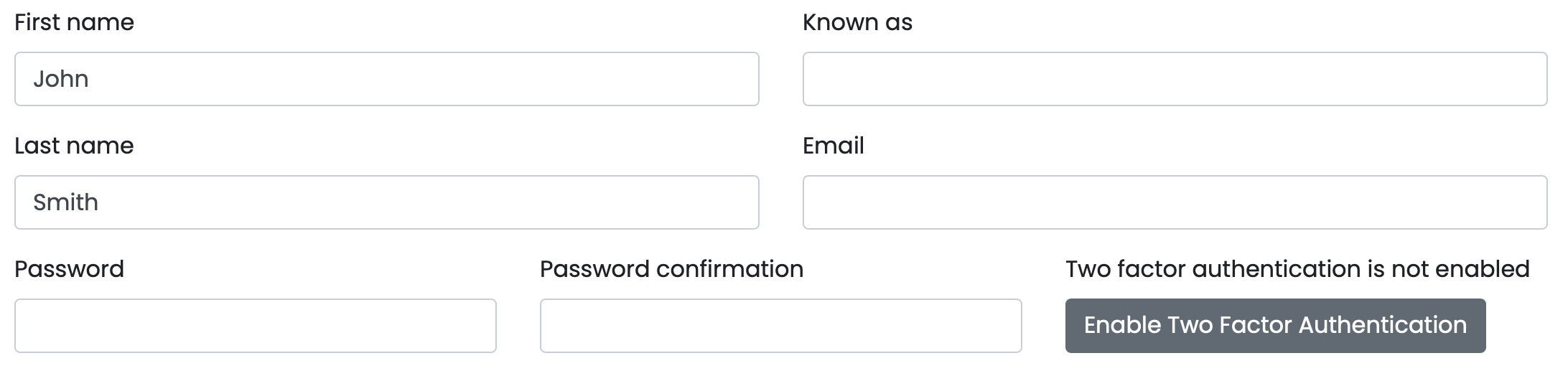
In your User Profile next to your password there is an option to "Enable Two Factor Authentication" shown below, click on that option
-
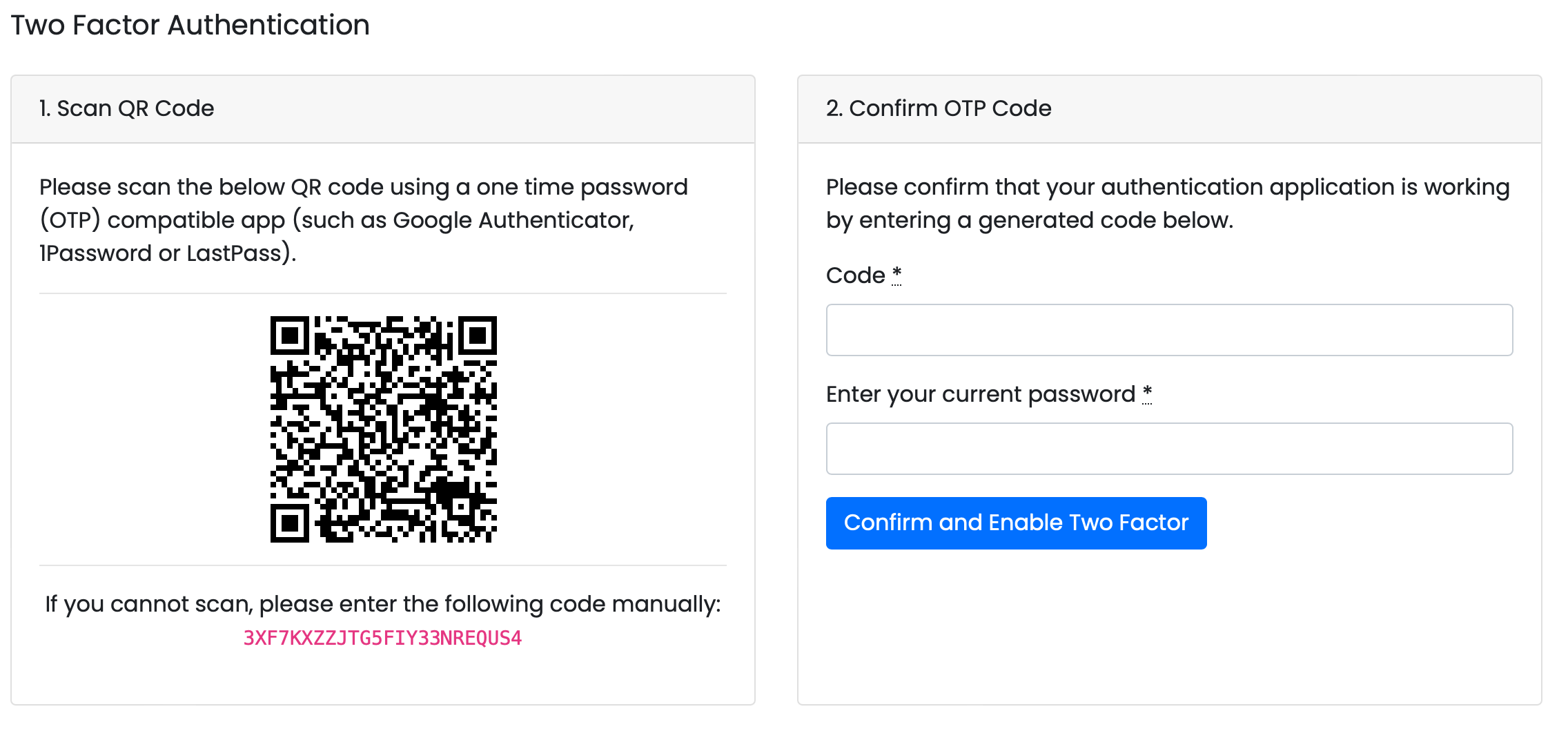
In the onboarding screen, you will be asked to scan the QR code, which you need to do using your OTP tool of choice, typically this will use the camera on your mobile device, or if using a desktop app will pop a movable window to position over the code. Follow the instructions in your OTP application to register and save the authentication. From your OTP application generate a password code and enter it into the code field, along with your password to Confirm and Enable Two-Factor Authentication.
-
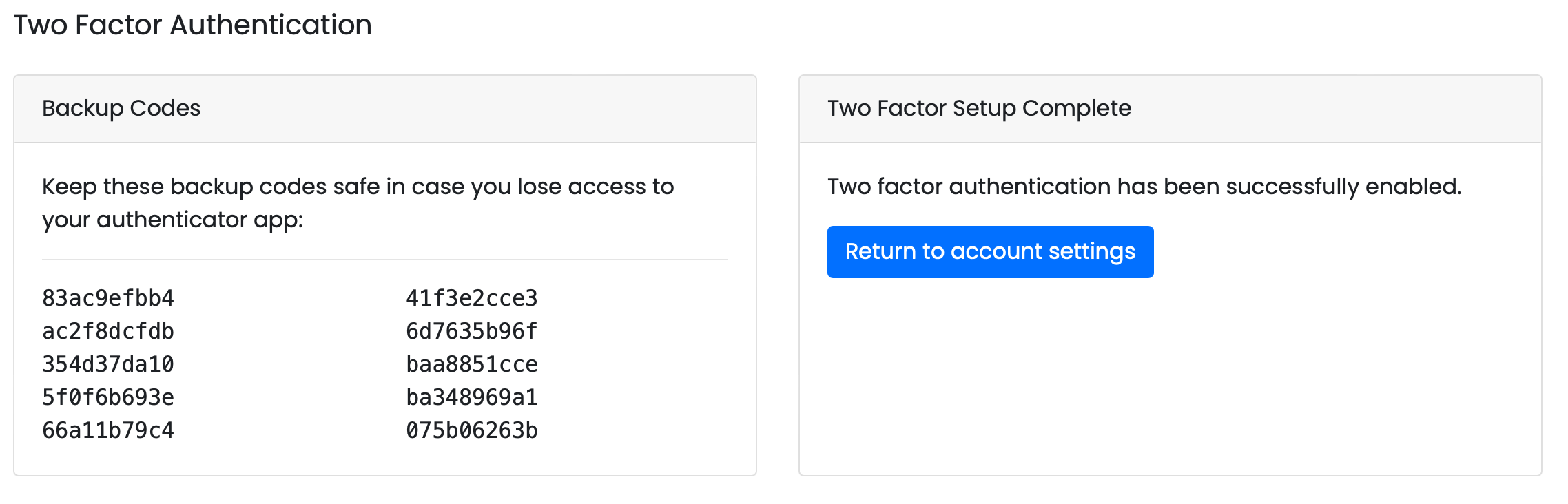
Once you have successfully confirmed, your backup codes will be displayed. Ensure you take a copy of your backup codes and save them somewhere safe, they cannot be displayed again, and are the only way to log in with your OTP application. We recommend saving a copy of the backup codes in your OTP application in the profile for this application.
Logging In Using Two-Factor Authentication
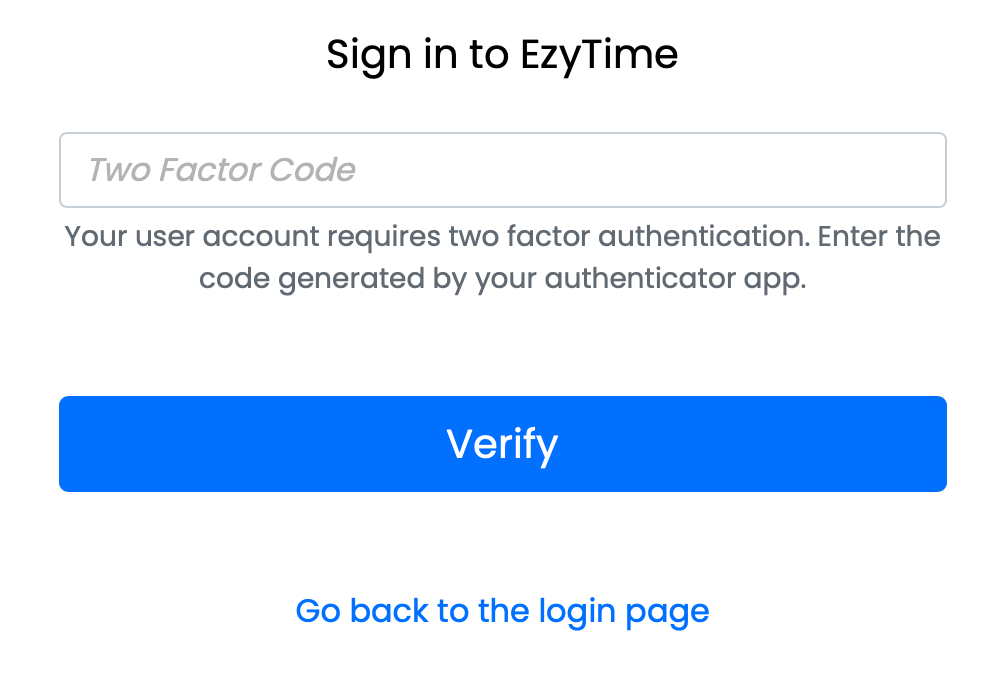
From the login screen, after successfully entering your Payroll ID and Password, you will be presented with an additional screen to enter the one-time password from your authenticator application. If you do not have your application available you can use one of the previously generated backup codes instead. Just so you know, each backup code can only be used once.
Disabling Two-Factor Authentication
To disable two-factor authentication, you have to be logged in, go to your User Profile, and you will see the option to disable it.
