
Team Management
How to manage Teams on the portal
Teams are an integral part of the portal, they help organise people into groups depending on where they work, which makes sending requests to the correct managers a whole lot simpler. This page is dedicated to completely understanding how they work as well as how each of the functions work.
Contents:
Managing your Teams
The very first page of your teams will show you all of the teams that are currently created on the portal, detailing the name of the teams, the managers and the employees of each team. You can also search for anyone specific on this page too, as well as specific teams, if you have that many.

With these lines, you are able to edit or delete any team on this screen, provided you are an Admin User. Editing allows you to change all of the information within in the event you have employees changing teams.
Creating a New Team
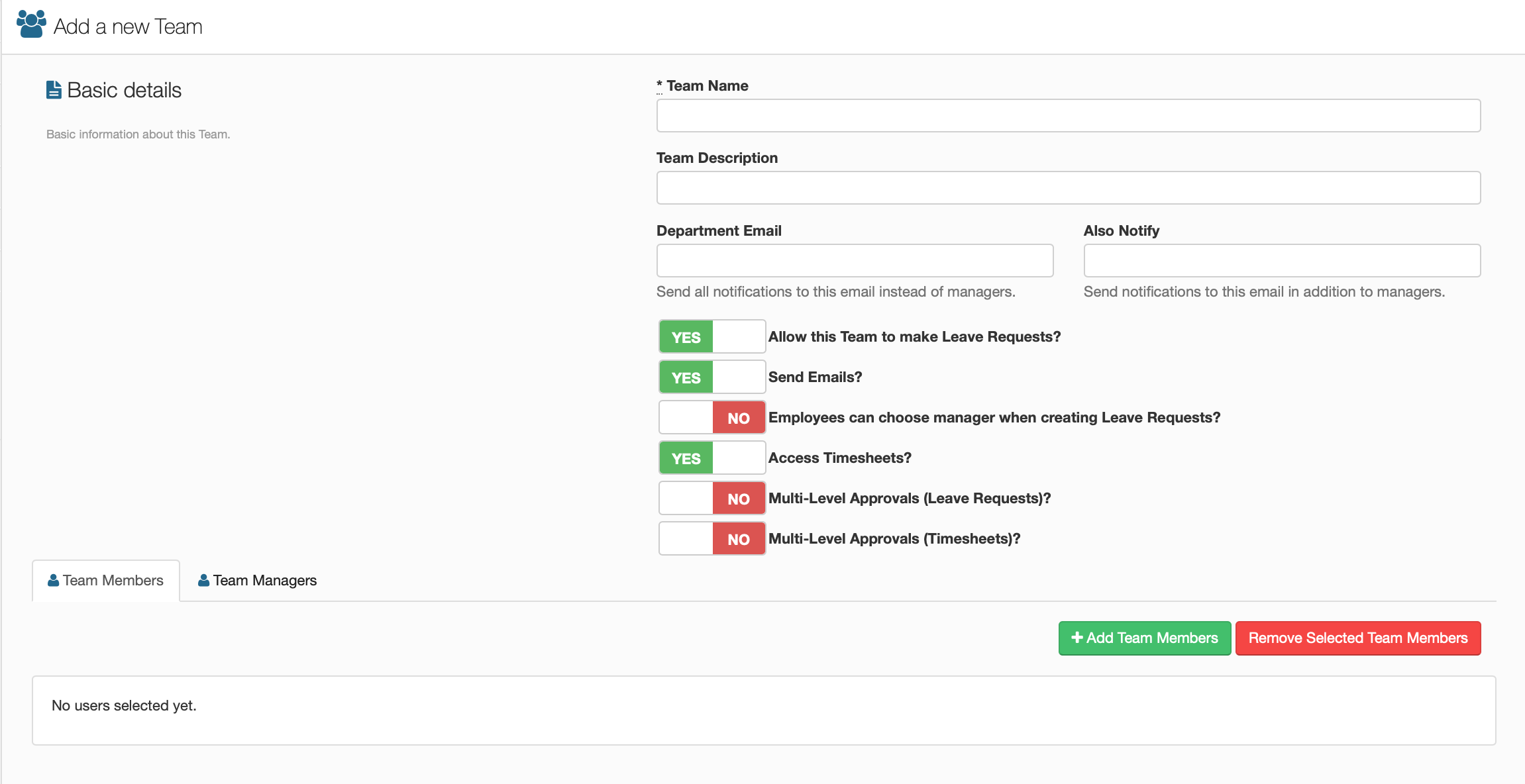
In order to create a new team on the portal, from the above page, click on the green button 'Add a New Team'. This will redirect you to the next page which contains everything you need to get a new team up and running. This page will look like this.
Creating the Team
Start with entering the name you are giving the team, this will generally be the role the employees have within the company, accompanied by a brief description of what this team does.
Next add in the department email if you think it is required, this step is not needed to complete the team, however, if you want emails to go to a separate email address instead of the team managers, enter it here.
'Also Notify', if you are wanting emails to go to an additional person alongside any managers, enter their email address here.
Next up you have the integral options of the team, these will determine the limitations of each created team, such as whether they can apply for leave, access timesheets, etc.
Allow this Team to make Leave Requests?
Toggle whether or not employees in this team are able to apply for leave.
Send Emails? -
Toggle whether or not employees are able to send emails.
Employees can choose manager when creating Leave Requests? -
If the team has more than one manager, toggle whether employees can choose any manager to send requests to.
Access Timesheets? -
Toggle whether or not employees in this team are able to access timesheets.
Multilevel Approvals
Multilevel approvals are used to allow the requests to go through multiple managers if this is required.
Adding users to Teams.
Adding employees into teams is an easy process, within the team creation screen is a separate category for adding users to teams, one for employees and one for managers.
Adding Employees
To add employees to your team, simply click on the button down the bottom that says, 'Add Team Members'. This will bring up the following screen:

All you have to do here is select all the users you wish to be a part of the same team, then click the button at the bottom called 'Add Users'. This will compile everyone you selected into a single group, therefore creating the team.
Adding Managers
To add managers to a team, the process is slightly different to adding to users, on the same screen, click on the bottom tab called 'Team Managers', this will bring up this screen:

To start off, select from the dropdown list of managers, who you want to manage this group, then enter their company email, this is used to send alerts to them from the portal. Next select how many days you want to have pass without the manager taking action on employee requests before it gets sent to the HR Admin.
Select whether they are allowed to approve leave and timesheets, and then if necessary, select their order of priority for escalated leave requests.